Hacking the Desktop: Building a C# Live Wallpaper Engine
Ever wondered how applications like Wallpaper Engine manage to draw stunning, animated graphics directly behind your desktop icons?
As someone who loves diving into Windows Internals and pushing the limits of what C# can do outside of standard enterprise applications, I decided to build my own Live Wallpaper Proof of Concept (PoC) from scratch. No heavy 3D engines, no bloated wrappers—just raw C#, GDI+, and a handful of Win32 API calls.
Disclaimer: I want to be clear up front—this PoC does not successfully draw behind the desktop icons like Wallpaper Engine does. Due to how modern Windows composition works, this engine actually acts as a transparent overlay, drawing the animations over the top of your desktop icons and workflow. It's a fun experiment in Z-order manipulation, but don't get it twisted thinking this is a perfect background replacement!
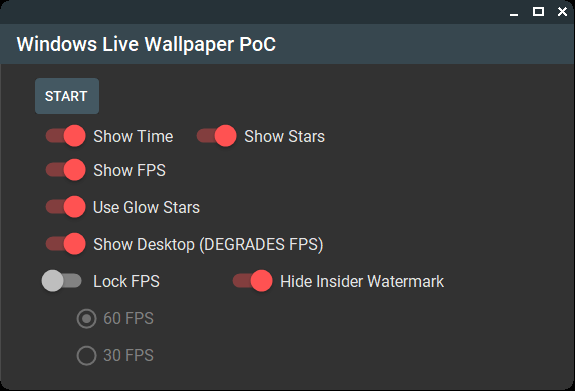
Here is a look at the MaterialSkin-based control dashboard for the engine:
The Core Concept: Manipulating the Z-Order
The Windows desktop isn't just a static background; it's a deeply nested hierarchy of windows managed by the Desktop Window Manager (DWM) and explorer.exe. Specifically, the desktop icons are hosted in a SysListView32 control, which sits inside a SHELLDLL_DefView, which is a child of the Progman (Program Manager) window.
To try and integrate with this, we spawn a custom borderless window and forcefully shove it to the bottom of the Z-order.
Spawning the Layered Window
We can't just use a standard WinForms Form for this. We need a window that the user can't interact with, doesn't show up in the taskbar, and supports transparency. We achieve this using CreateWindowEx from user32.dll:
// Extended styles for a transparent, click-through tool window
const uint WS_EX_LAYERED = 0x80000;
const uint WS_EX_TOOLWINDOW = 0x00000080;
const uint WS_EX_TRANSPARENT = 0x00000020;
const int WS_POPUP = unchecked((int)0x80000000);
const int WS_VISIBLE = 0x10000000;

// Create our own layered window
IntPtr myWallpaperWindow = CreateWindowEx(
    (int)WS_EX_LAYERED | WS_EX_TRANSPARENT | (int)WS_EX_TOOLWINDOW,
    "static",
    "",
    WS_POPUP | WS_VISIBLE,
    0, 0, Screen.PrimaryScreen.Bounds.Width, Screen.PrimaryScreen.Bounds.Height,
    IntPtr.Zero, IntPtr.Zero, IntPtr.Zero, IntPtr.Zero);

// Set the layered attributes for transparency (Start fully opaque)
SetLayeredWindowAttributes(myWallpaperWindow, 0, 255, 0x2); // LWA_ALPHA = 0x2

// Position our window behind the desktop icons
SetWindowPos(myWallpaperWindow, new IntPtr(1), 0, 0, 0, 0, 0x0001 | 0x0002 | 0x0010);
By passing new IntPtr(1) (which represents HWND_BOTTOM) to SetWindowPos, the OS buries our window underneath most standard applications. However, as mentioned, it still ends up rendering over the SysListView32 desktop icons.
The Render Loop: GDI+ and BitBlt
Standard WinForms rendering is notoriously slow because it relies on the Paint event and triggers excessive OS repaints. To achieve a smooth 60 FPS for our falling stars and clock, we have to bypass standard rendering and use a manual Backbuffer combined with the BitBlt (Bit-Block Transfer) API from gdi32.dll.
We draw all our frames (stars, text, overlays) onto a Bitmap in memory, and then blast that entire frame directly onto the Device Context (DC) of our background window.
// Inside the main while(true) render loop...
using (Graphics g = Graphics.FromImage(backBuffer))
{
    g.Clear(Color.FromArgb(255, 0, 0, 0));

    // Draw the clock
    if (ShowTime) {
        g.DrawString(DateTime.Now.ToLocalTime().ToLongTimeString(), fontArial, Brushes.White, new PointF(rightEdge, 20), rightAlignFormat);
    }

    // Update and draw the particle system
    if (ShowStars) {
        stars.Update(g, UseGlowStars);
    }
}

// Blast the backbuffer to the screen using raw GDI
IntPtr hdcDestWindow = GetDC(myWallpaperWindow);
if (hdcDestWindow != IntPtr.Zero)
{
    IntPtr hdcSrcWindow = CreateCompatibleDC(hdcDestWindow);
    if (hdcSrcWindow != IntPtr.Zero)
    {
        IntPtr hBitmap = backBuffer.GetHbitmap();
        IntPtr hOld = SelectObject(hdcSrcWindow, hBitmap);

        // Perform the blit (SRCCOPY = 0x00CC0020)
        BitBlt(hdcDestWindow, 0, 0, width, height, hdcSrcWindow, 0, 0, 0x00CC0020);

        // CRITICAL: Prevent memory leaks by cleaning up GDI objects!
        SelectObject(hdcSrcWindow, hOld);
        DeleteObject(hBitmap);
        DeleteDC(hdcSrcWindow);
    }
    ReleaseDC(myWallpaperWindow, hdcDestWindow);
}
Note the cleanup phase: Forgetting to call DeleteObject(hBitmap) inside a 60 FPS loop will cause your application to leak GDI handles rapidly until the OS forcefully crashes the process!
Visuals: The Custom Particle Engine
To make the wallpaper dynamic, I wrote a custom particle engine (StarParticles.cs) that handles physics (falling velocity) and rendering.
Instead of just drawing hard-edged circles, I implemented a custom luminance and Gaussian blur routine using PathGradientBrush to give the stars a realistic, ambient glow. It calculates the brightness of the generated color and dynamically scales the radius and opacity of the blur.
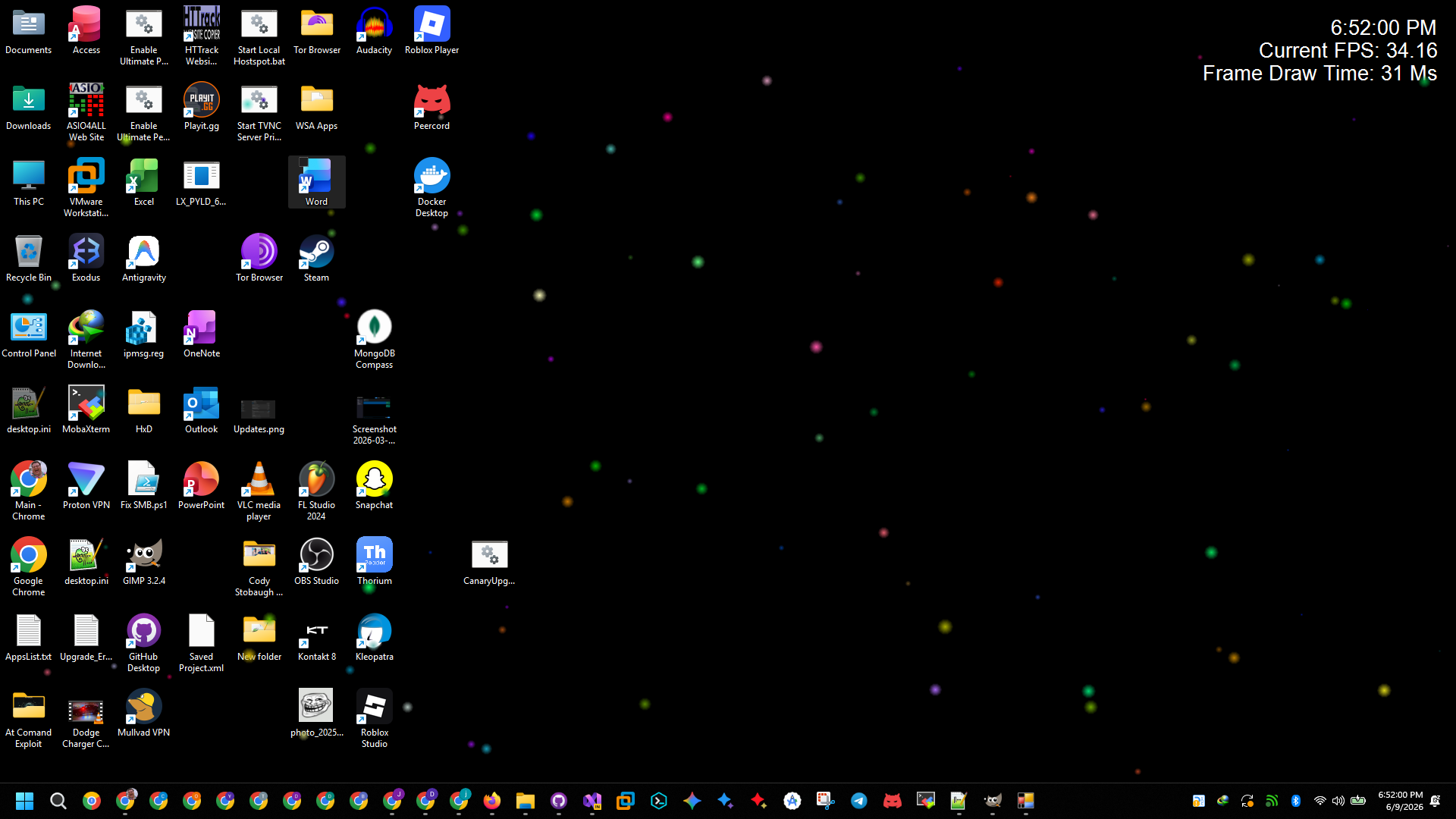
As you can see in the screenshot below, the stars are clearly rendering over the desktop icons, proving this acts as an overlay rather than a true background injection.
The "Hide Insider Watermark" Hack
If you run Windows Insider builds, you are intimately familiar with the annoying activation watermark stuck in the bottom right corner of your screen.
Because we control the render loop, we can do some highly illegal (and funny) memory manipulation to erase it. If the user toggles the "Show Desktop" checkbox, the engine actually uses BitBlt to take a screenshot of the real desktop, paints it onto our backbuffer, and then draws a black rectangle explicitly over the coordinates where the watermark lives before rendering our stars on top of it.
(Please note: The coordinates used in the code snippet below are hardcoded specifically for a 1080p desktop. If you are using a different resolution, they will not align correctly!)
// Direct BitBlt from the actual desktop listview to the backbuffer graphics HDC
IntPtr hdcDest = g.GetHdc();
IntPtr hdcSrc = GetWindowDC(desktopListview);

if (hdcSrc != IntPtr.Zero)
{
    // Copy the real desktop
    BitBlt(hdcDest, 0, 0, width, height, hdcSrc, 0, 0, SRCCOPY);
    ReleaseDC(desktopListview, hdcSrc);
}
g.ReleaseHdc(hdcDest);

if (HideWatermark)
{
    // Erase the Windows Insider Watermark!
    g.CompositingMode = CompositingMode.SourceCopy;
    g.FillRectangle(blackBrush, new Rectangle(1511, 986, 406, 43));
    g.CompositingMode = CompositingMode.SourceOver;
}
Disclaimer: Copying the entire 1080p/4k desktop into memory 60 times a second using GDI+ heavily degrades FPS. It's a fun trick, but for a production application, this should be done using DirectX or OpenGL hardware acceleration rather than CPU-bound GDI+.
Conclusion
This PoC was an awesome dive into the legacy Win32 API. While modern applications are moving toward WinUI 3 and hardware-accelerated composition, there is still something magical about dropping down to raw memory pointers, device contexts, and bit-block transfers to manipulate the operating system at a lower level.
Until next time, keep exploring the internals!
Terminal Logs
0 TransmissionsInitialize Transmission